
Treatment plans
Under Practice → Treatment plans you put together treatment plans and cost estimates for your patients – with your own prices. The patient gets a PDF or a link via WhatsApp. Once the patient accepts, the lab work of the plan becomes lab cases with one click. Owners, administrators, dentists and assistants can work with treatment plans.
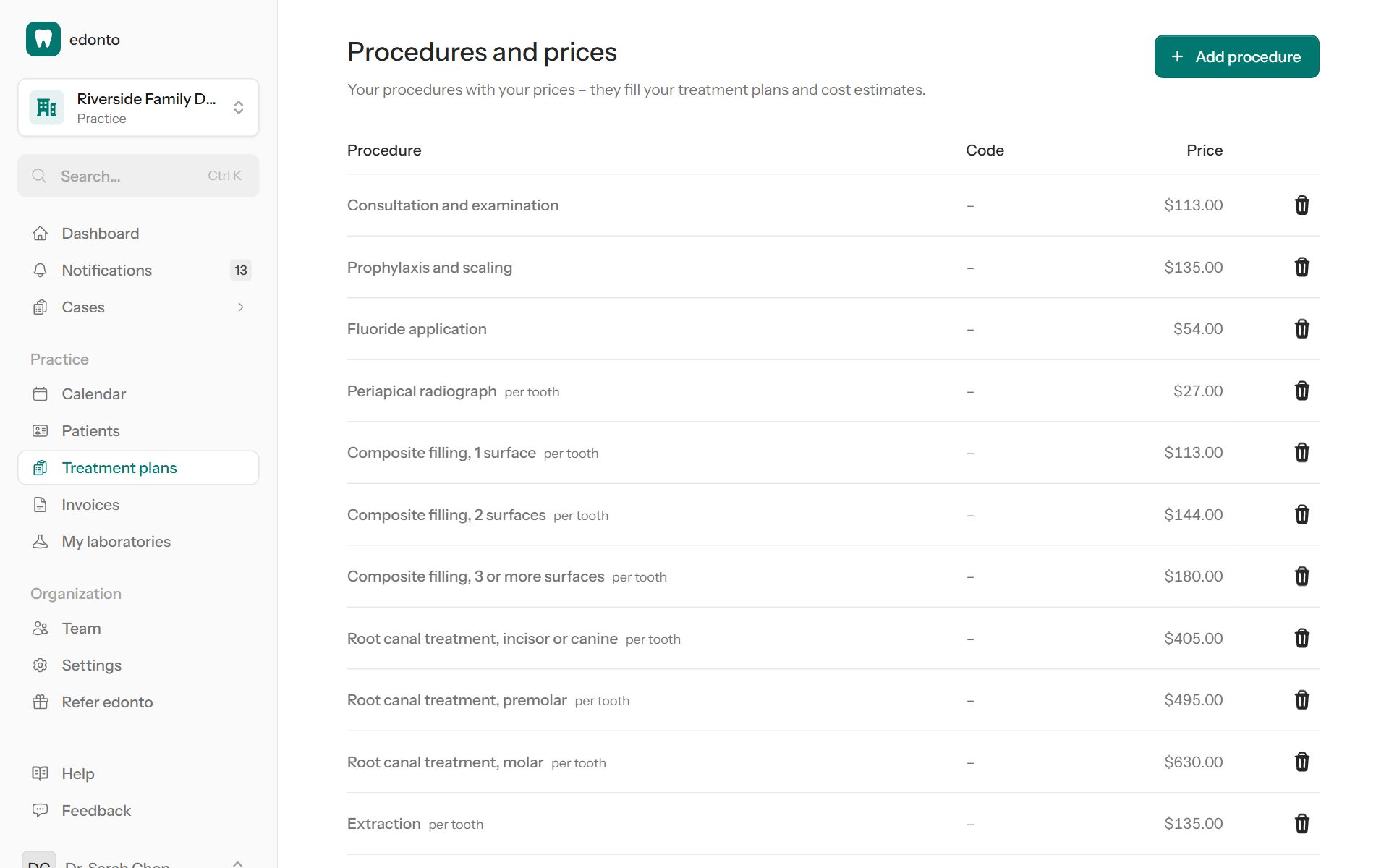
Procedures and prices
Procedures and prices is your price list for patients. edonto starts you off with common procedures (consultation, fillings, root canal treatment, crowns, implants …) without prices – enter your prices, rename procedures, add your own and deactivate what you don't offer. Turn on Price per tooth for procedures that are charged per tooth: in a plan, the chosen teeth are counted.
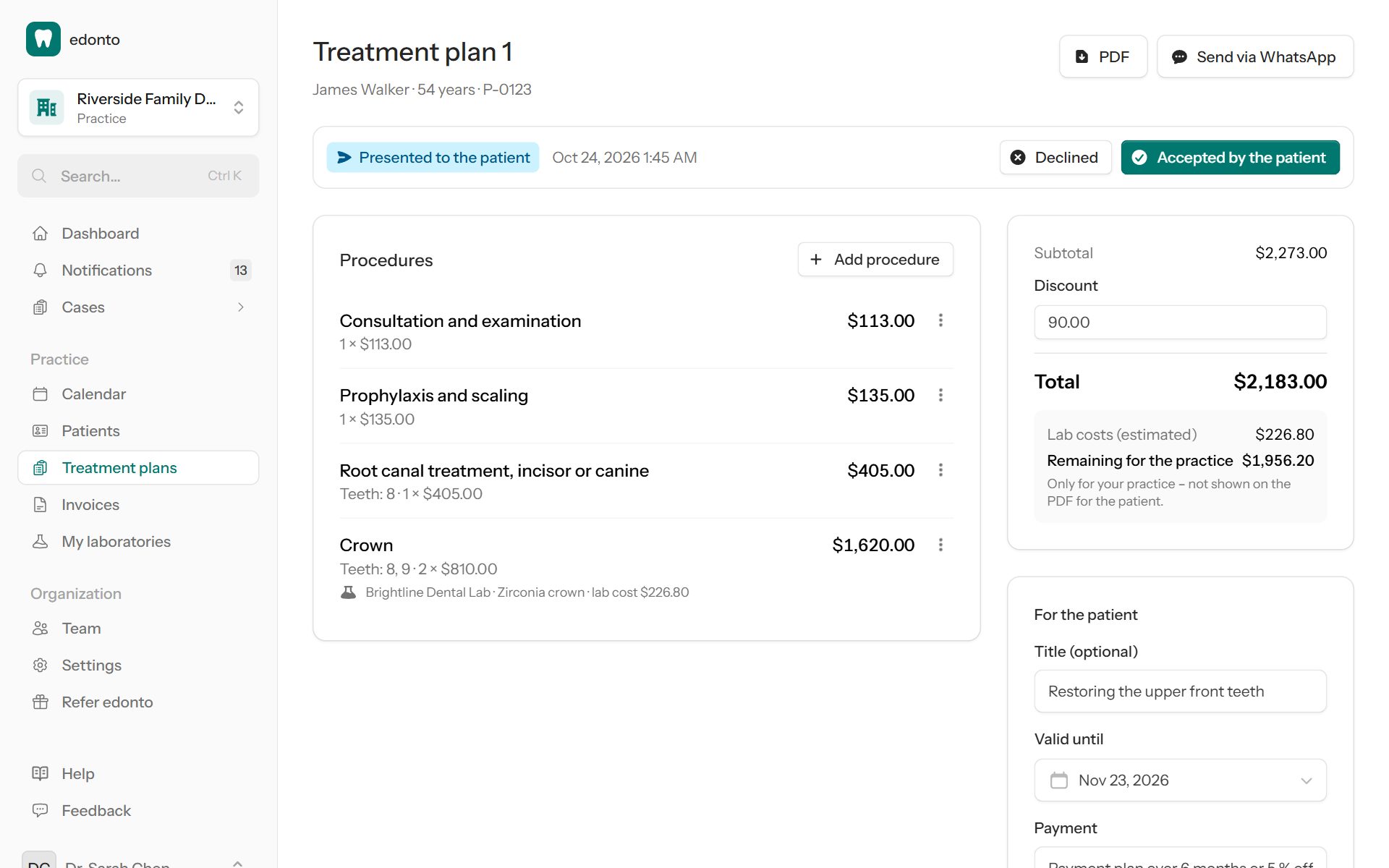
Create a plan
- Select New plan and search for the patient. From the patient list, the clipboard icon opens the plans of that patient.
- Select Add procedure, choose the procedure, mark the teeth on the chart and check the price. The description is what the patient reads on the plan – change it if needed.
- Is lab work needed (for example a crown)? Turn on Lab work and choose the lab and the product. edonto shows the lab cost from your lab's prices for your practice.
- Under For the patient, add a title, the date the estimate is valid until (30 days by default), the payment terms (for example installments) and notes. A Discount is subtracted from the total.
Everything is saved as you type.
Lab costs and margin
Next to the total, edonto shows Lab costs (estimated) and what is Remaining for the practice. This box is only for your practice – it is never shown on the PDF for the patient. Lab work without a price in the lab's price list is marked; the lab confirms the price on the case.
Hand the plan to the patient
- PDF opens the plan for printing – with your practice, the procedures, the total, the validity and signature lines.
- Send via WhatsApp prepares a message with a link to the PDF. The link works for 30 days without signing in.
Then select Presented to the patient. When the patient decides, select Accepted by the patient or Declined. Accepted and declined plans can no longer be changed; Reopen turns them back into a draft.
From the plan to lab cases
In an accepted plan, select Create lab cases. edonto creates one draft case per lab with the patient, the products and the teeth from the plan and opens the first one. Add the details the lab needs (shade, delivery date, files) and send the case as usual – see Send cases. The plan shows the case number next to each line; once cases were created, the plan can no longer be reopened.