
Patient record
Select a patient's name under Practice → Patients to open the patient record. It keeps the clinical documentation of your practice: health questionnaire, odontogram, clinical notes and photos and X-rays. Labs never see the patient record – on a case they only see what you share (see Privacy). Owners, administrators, dentists and assistants can work with patient records.
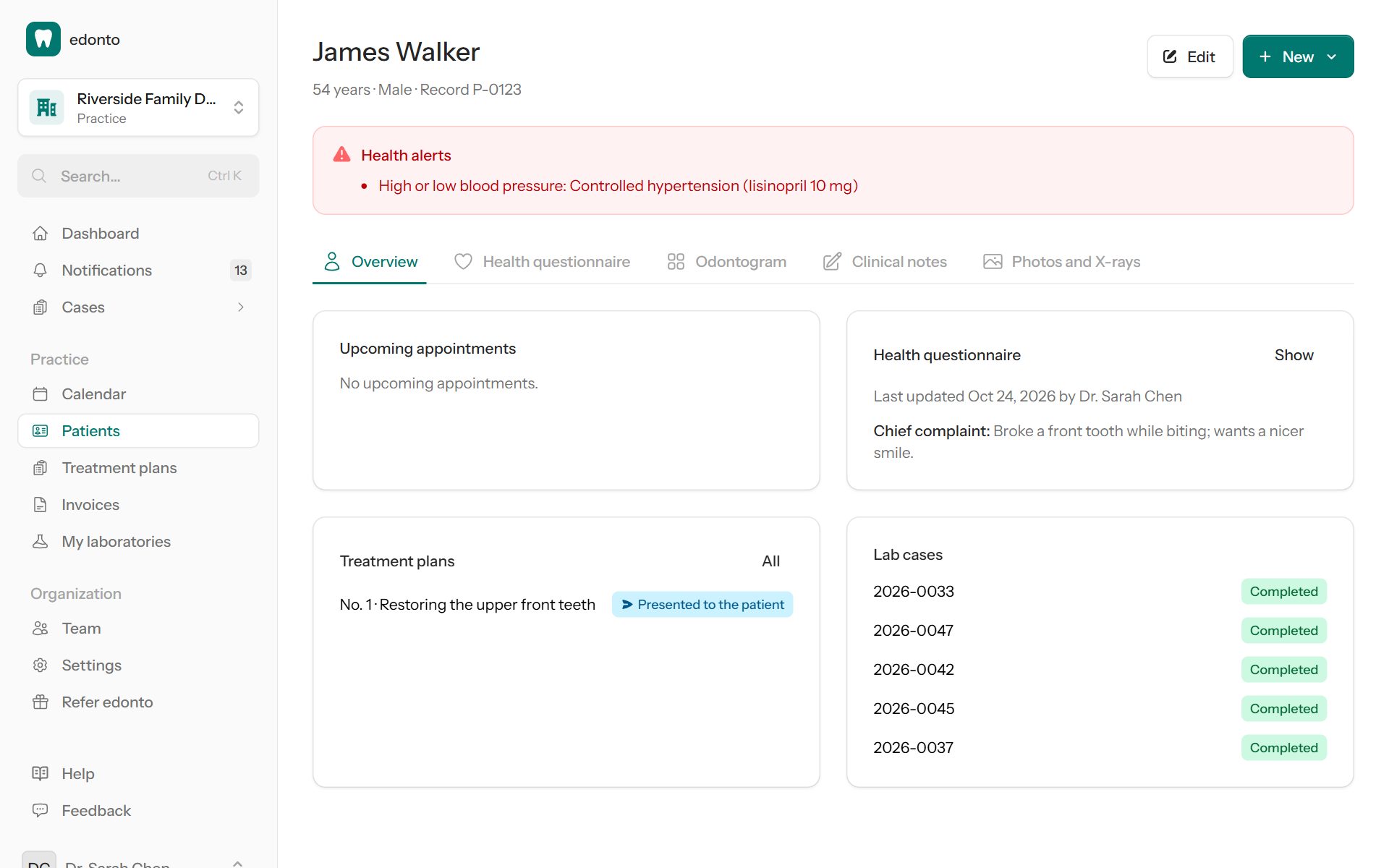
At the top you find the patient's age, sex and record number, Edit for the patient's details and New to add a clinical note, an appointment, a treatment plan or a lab case for the patient. Health alerts from the health questionnaire are shown on every tab.
Overview
The overview shows the upcoming appointments, the state of the health questionnaire, the latest treatment plans and the lab cases of the patient.
Health questionnaire
Select Fill in (later Update) and answer the questions with Yes, No or Not sure – for example medication, allergies, heart disease, blood pressure, diabetes, bleeding problems or pregnancy. A Yes opens a field for details. Add the Chief complaint and Other information if needed.
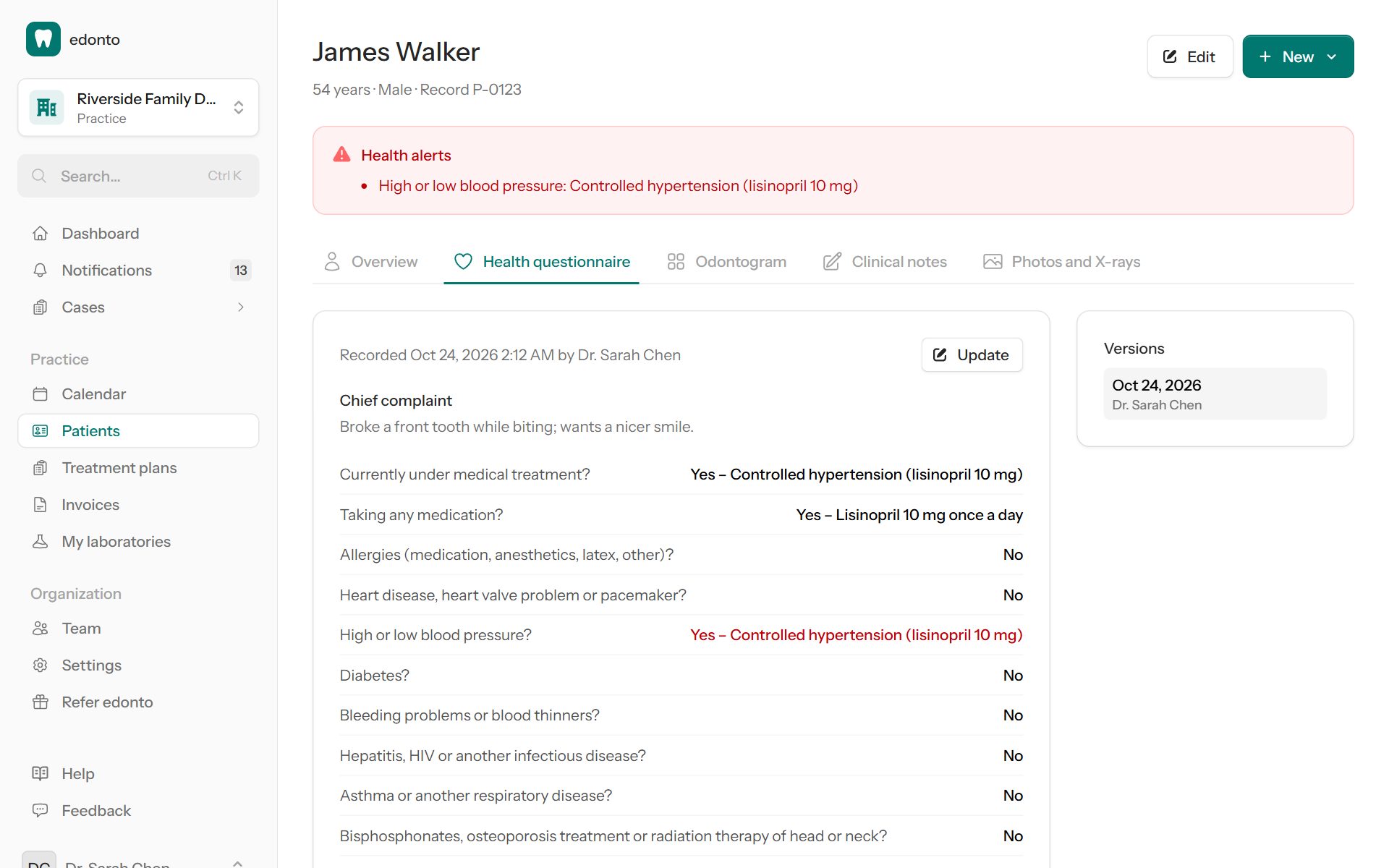
Every update is saved as a new version; earlier versions stay available under Versions. Important answers (for example allergies or blood thinners) appear as Health alerts on top of the patient record.
Odontogram
The odontogram shows the findings per tooth: To treat (caries, fracture, extraction needed), Existing work (fillings, crowns, root canal treatments, implants, bridge pontics) and crossed-out Missing teeth. Select a tooth to see its findings.
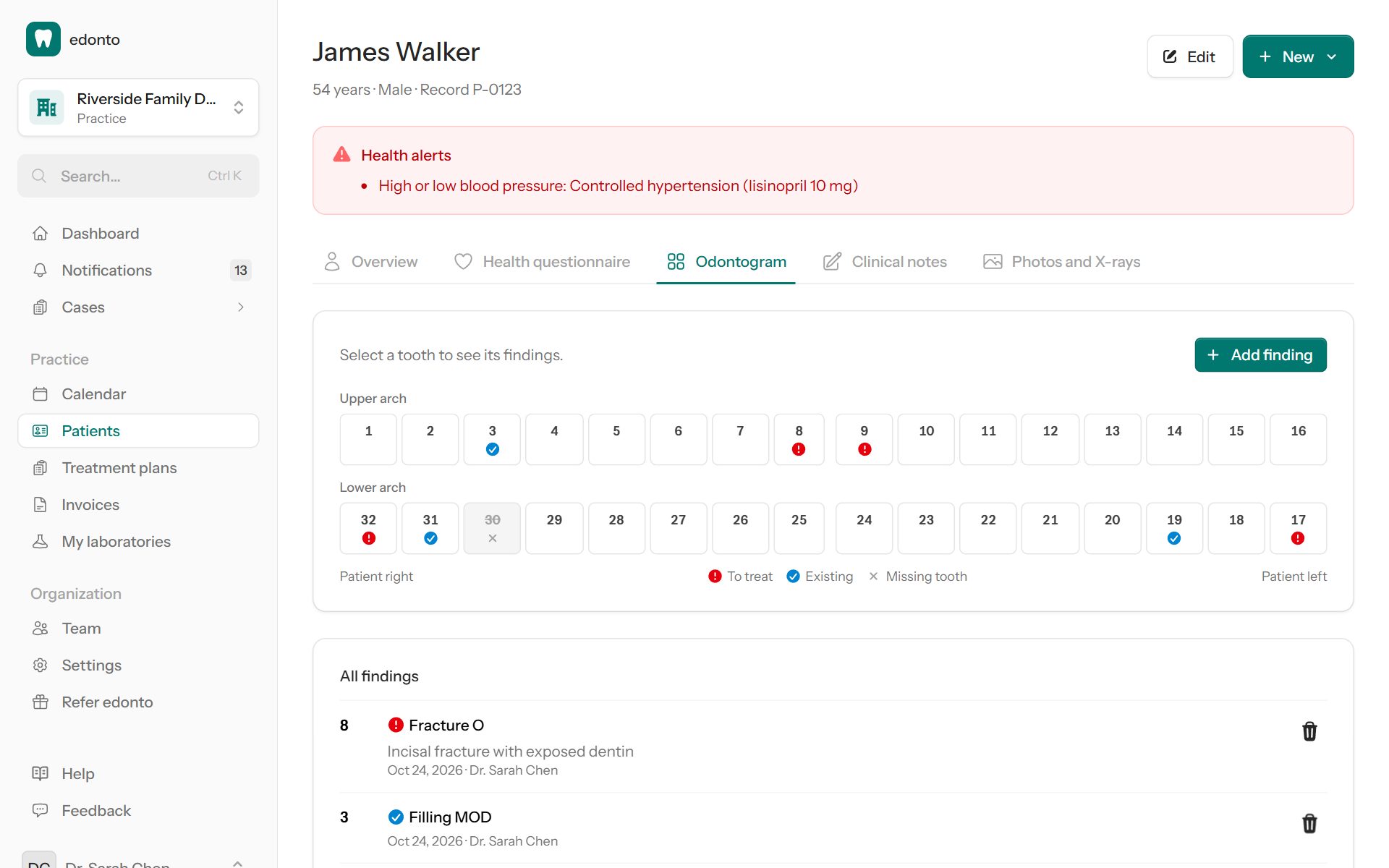
To record a finding, select Add finding, mark one or more teeth, choose the Finding and – for caries, fractures and fillings – the Surfaces. Removed findings stay in the change history.
Clinical notes
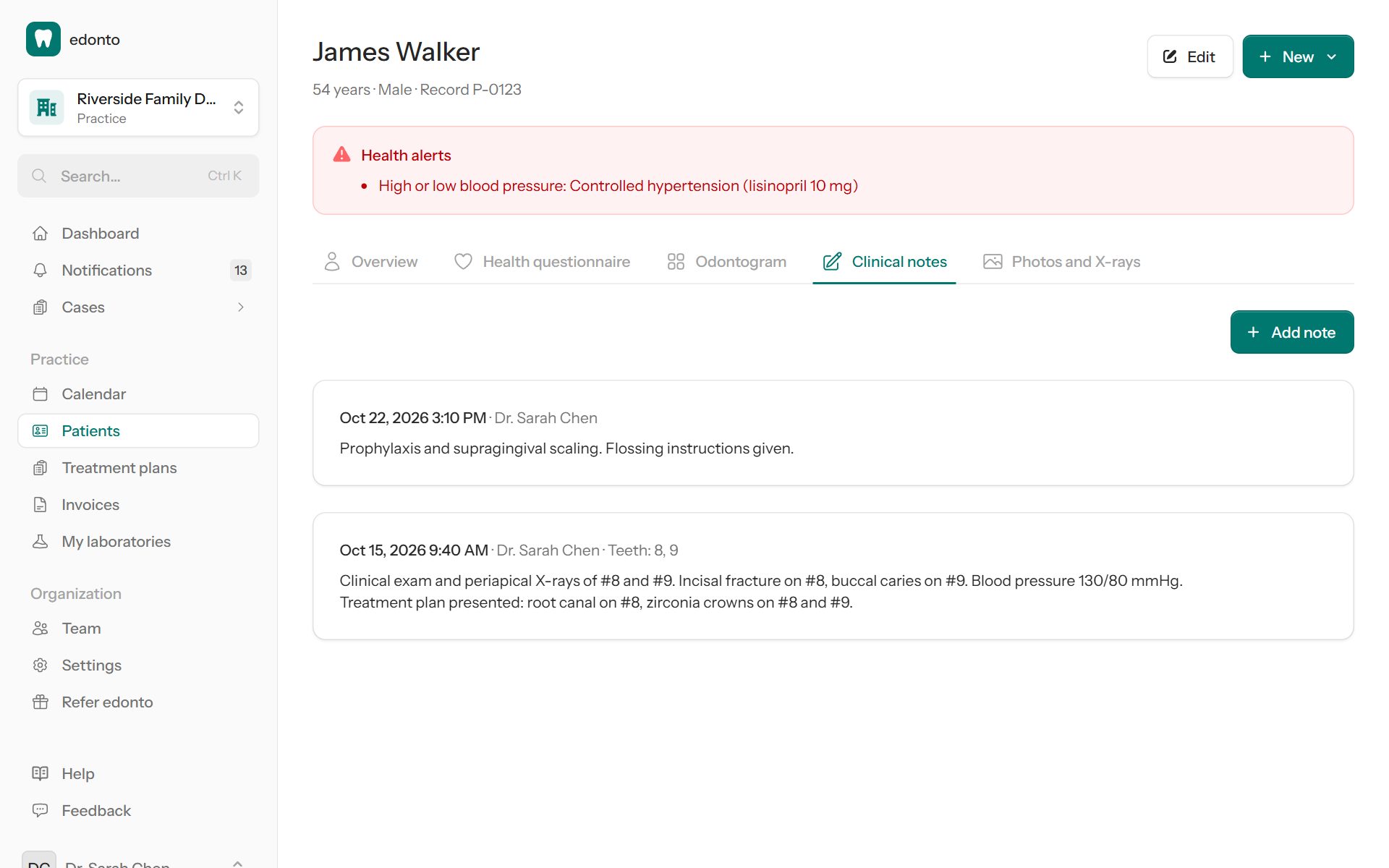
Write down what was done or observed at each visit: select Add note, write the note and, if you like, choose the appointment and the teeth. Today's appointment is preselected. The author can correct a note for 24 hours; after that it is part of the record and can't be changed.
Photos and X-rays
Drop photos, X-rays (also DICOM), PDFs and scans – up to 100 MB each – onto the upload field. Images are recognized as photos, DICOM files as X-rays and everything else as documents; the menu of a file lets you change its kind, download or delete it. Filter the files by kind above the list.
Export and deletion
The data export of your practice (Request data export, see Organization) contains the patient records with their files. Deleting a patient (see Patients) also deletes the patient record. Check your retention obligations for clinical records before deleting a patient.